extracted from http://blog.pluralsight.com/join-mac-to-windows-domain
How to Join a Mac to a Windows Domain
By Eric English
Tell me if this sounds familiar. You come into work one day and your boss calls you into his office and says he got a new laptop. You arrive at his office door and realize your boss bought a Mac. He wants to be able to access all the company files stored on your Windows domain from his new Mac. Or maybe the scenario is a bit different. Your company decides to create a new department for graphical design and marketing and all the designers use Macs.
So what do you do? Not to worry, you can join a Mac to your Windows domain and today I’m going to show you how it’s done. Let’s walk through joining Snow Leopard to a Windows Server 2008 domain.
Setting Network and User Options on a Mac
Windows domains rely on DNS for Active Directory to work correctly so the first thing we need to do is set a static DNS address on your Mac. We need to use the IP address of your Windows domain controller for this setting. From your dock open
System Preferences or click the
Apple in the top left corner and choose
System Preferences. Now click
Network to open your network settings.

Now you should be at your Network settings screen.

By default your network adapter is set to DHCP. Depending on the network connection you are going to use you will need to change this setting toManually.
Keep in mind if you are setting a static address on your Mac and you take it to another network you might need to change this setting back to DHCP. I would suggest using the wired or Ethernet connection for your static address and use the wireless for DHCP. In this example I am setting a static address on the Ethernet connection.
My Windows domain controller has an IP address of 192.168.1.172 so I will put this in the DNS section. I’m setting my IP address to 192.168.1.171 for this example. Fill in your IP address, subnet, gateway, and DNS according to your network settings.
Click the back button to go back to
System Preferences and choose
Accounts
Click the
Lock to make changes to these settings. Then click the
Join button next to
Network Account Server
Now click the
Open Directory Utility button
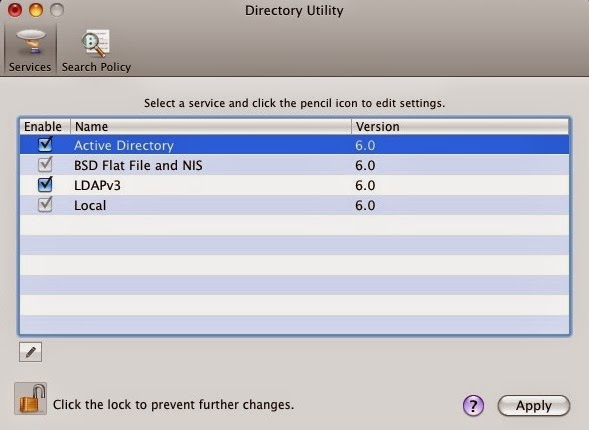
You should now be at the Directory Utility; click the Lock to make changes. Then make sure Active Directory is checked, highlight it, and then click the Pencil to edit this setting.
Here you can enter your domain information and computer ID. For this example the domain is
hq.test.us and the computer ID is
Mac. The computer ID is the computer name that will show up in Active Directory once the Mac is joined to the domain.
*******Set up Create mobile accounts at login *******
_________________________________________________________________________
If you use a portable computer and can join it to a network account
server that lets you have a mobile user account, you get the following
benefits:
- A mobile account provides a home folder on both your
computer and a network account server. The two home folders are
automatically synchronized whenever you log in when you’re connected to
the server’s network.
The term “portable home directory” refers to the synchronized home folders.
- The appearance of the desktop and other resources on a
portable computer is the same, whether or not you’re connected to the
network.
- You use the same user network name and password when you log in, whether or not you’re connected to the network.
Before you can set up a mobile account, you must join your computer to a network account server that supports mobile accounts.
__________________________________________________________________________
Click the arrow to Show Advanced Options. This gives you 3 extra options you can configure. To keep it simple I usually leave these settings default except for the Administrative section. Click the Administrative button and enter the IP address or the FQDN of your domain controller in the Prefer this domain server section. For this example I used the IP address of my domain controller192.168.1.172. You can also specify groups that are allowed administration privileges.
Now click the Bind button and you will be prompted for credentials. Enter your domain administrator username and password and click OK.
You should see it progress through steps 1-5 as you are authenticated and joined to the domain.
Now you should be joined to the domain and the Bind button changes toUnbind.
Click OK and then click Apply in the Directory Utility window. Then close the Directory Utility. Now you should be back at the Accounts window. Note the green dot and domain name next to Network account server.
Logging In with Windows Credentials on Your Mac
Now you should be able to login to the Mac with your Windows domain credentials. Log off the current user you are logged in with. When you get back to the login screen choose Other.
Now enter your Windows domain credentials.
That should get you logged into the computer with your domain credentials. So now what? How do you access the files on the server?
We will need to map drives to the shared folders on the server so you can access the files. From Finder click Go then click Connect to Server. Since Mac uses SMB we need to use this syntax: smb://servername/share then clickConnect.
Note that you will not be prompted for credentials to connect because we are logged in with our domain account. You can also connect to Windows shared folders with the same syntax and a username and password if your Mac is not joined to the domain.
Mac on Windows Domain: Is it Worth it?
Now I bet you’re wondering, is this worth it?
This process is not for the faint of heart and can get tricky depending on your environment. There can be issues with joining Macs to a .local domain and there can also be reverse DNS issues to be aware of. With these things in mind, there are definitely some things to consider before joining your Mac to a Windows domain.
Some may wonder what the benefits of joining s Mac to a Windows domain would bring. It mostly helps with accessing files on your Windows server without authenticating every time. It also helps with user account management and alleviates the need to have separate user accounts on the local Mac computer and on the Windows domain.
In my opinion, if you have a mobile Mac user with a laptop you probably wouldn’t join it to your domain, but would instead authenticate when needed. If you have Mac desktop computers and multiple users logging into them and using them daily, joining them to the domain is probably a better solution. Overall it’s up to you how you want to configure it but hopefully this gives you a good baseline to start with.
What other benefits can you think of for joining a Mac to a Windows domain? What other solutions are there for Windows organizations that use Macs?